Installing Trace on Windows
Download the installer, check it is ours, and get past Windows' "Windows protected your PC" warning while the installer isn't code-signed.
Trace's installer isn't code-signed yet. Until it is, Windows doesn't know the publisher and may stop the installer the first time you run it. This page shows what you will see and what to do. Once the installer is signed, the warning goes away and the download page stops mentioning it.
Download
- Open the download page and click Download for Windows. Downloading needs a free Kavlen account with a verified email; if you aren't signed in, the button takes you through that first and brings you back.
- Your browser saves a file named like
Trace_0.1.0_x64-setup.exein your Downloads folder. The download page shows the exact name and size.
The download link works for 10 minutes. If it stops, click Download again for a new one.
Check the file is ours
This step is optional, but it is how you know nobody changed the file on the way.
-
Open your Downloads folder in File Explorer, type
powershellin the address bar and press Enter. -
Run this command, with the file name from the download page:
TextGet-FileHash .\Trace_0.1.0_x64-setup.exe -Algorithm SHA256
-
Compare the long code it prints with the SHA-256 on the download page. Every character should match. If they don't, don't run the file: download it again, and if it still differs, contact support.
Your browser and Windows ask first
- In the browser. Edge may say the file "isn't commonly downloaded. Make sure you trust it before you open it." Click Keep. Other browsers use similar words.
- When you open it. Windows may show a small box, Open File – Security Warning: "The publisher could not be verified. Are you sure you want to run this software?", with Publisher: Unknown Publisher. Check the name is the one from the download page and click Run.
- Give it a moment. Your antivirus may check the file before the installer appears, which can take up to half a minute. Open the file only once; if a second copy of the installer starts anyway, it closes by itself.
"Windows protected your PC"
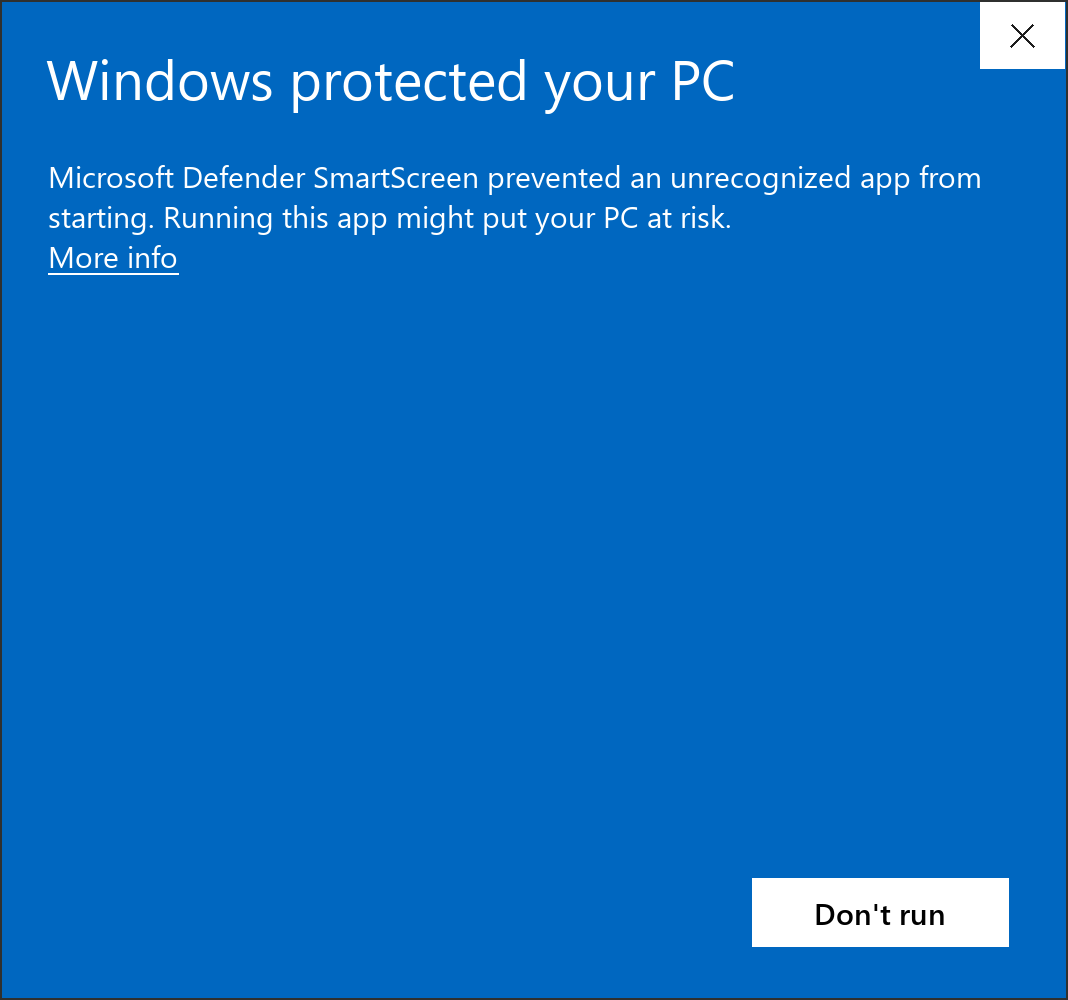
When you open the installer, Windows may also show a blue window titled Windows protected your PC, with only a Don't run button. (The pictures here show English Windows; in another language the words are translated but the window looks the same.)
-
Click More info, the small link under the message.
-
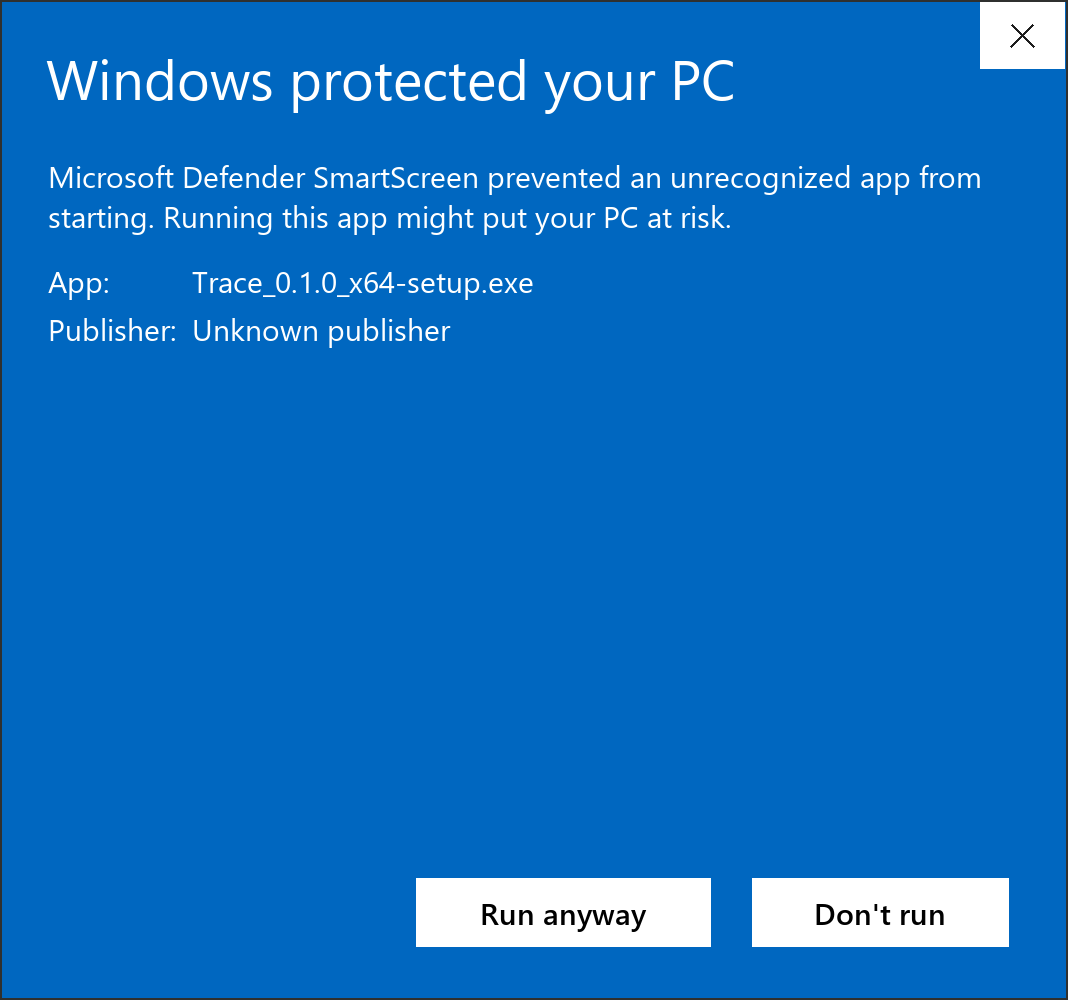
The window now shows the file name and Publisher: Unknown publisher. Check that the file name is the one from the download page.
-
Click Run anyway. The installer starts. Windows remembers your choice for this file and won't ask again.
PCs with Smart App Control
Smart App Control is a stricter setting on some new Windows 11 PCs. When it is on, Windows may block the installer with no Run anyway option at all. That stops once the installer is signed.
Installing
The installer shows the Trace Licence Agreement, then the folder: Trace installs for your Windows account only, in %LOCALAPPDATA%\Trace, so it needs no administrator password. It takes about 170 MB.
After installing
Trace opens by itself when you click Finish (untick Run Trace if you'd rather not), and from then on it starts whenever you sign in to Windows. To change that, use Start Trace when I sign in in Settings › General. You can also open it from the Start menu. First run explains the setup window.